First look: Our new MCP integration in UiCore PRO
You can now build an entire UiCore PRO website directly from your AI assistant.
Set up your brand, create pages, customize layouts, add animations, and even check your website before launch, all through prompts using your preferred AI assistant.
AI-powered website building has been one of the most requested features from our community, so we’ve been working on bringing it to UiCore PRO.
Today, we’re sharing a first look at our new MCP integration, coming with UiCore PRO v3.
Your AI assistant, now connected to WordPress
If you’ve used AI to help build websites, you’re probably familiar with the process. You ask for something, get instructions or generated code, and then manually apply the changes to your website.
With MCP, your AI assistant can work directly with your WordPress site.
MCP stands for Model Context Protocol, an open standard that allows AI assistants to connect with external tools and applications.
We’ve added MCP support to UiCore PRO, giving compatible AI assistants access to your site’s settings, design system, content, and building tools.
You can describe what you want in plain English, and the assistant can make those changes directly on your website.
The integration works with compatible AI assistants, so you can use your existing AI subscription rather than paying for a separate AI service.
What can you do with it?
We’ve made a wide range of UiCore PRO features accessible through MCP, covering everything from initial site setup to page building and adjustments.
Set up your entire brand
Tell your AI assistant about your business and let it configure your Brand Kit. This includes global colors, typography, fonts, and other design settings that keep your website consistent.
It can also work with your brand’s target audience and tone of voice, helping you create content that fits your business.
Build pages and posts
Ask AI to create pages, write content, and assemble layouts using Elementor or Gutenberg (UiCore Blocks).
You can start with a simple description of the website you want or give detailed instructions for individual sections.
You can also request changes to existing pages without having to rebuild them manually.
Customize your website
Your AI assistant can adjust site settings, create animations, and work with the UiCore Theme Builder to create and manage site parts such as headers and footers.
You can also ask for responsive adjustments to make sure your layouts work across different screen sizes.
Add animations and effects with UiCore Animate
Ask your AI assistant to add entrance animations, scrolling effects, and other visual interactions using UiCore Animate.
You can apply effects to individual elements or sections, adjust their settings, and make changes through follow-up prompts.
Review your website before launch
Once your website is built, AI can help with quality assurance.
Ask it to review the layout, check responsive behavior, identify potential issues, and make adjustments before handing the website over to your client.
See it in action
To test the new MCP integration, we connected Claude to UiCore PRO and asked it to build a website from a single prompt.
Below is a look at the process and the results.
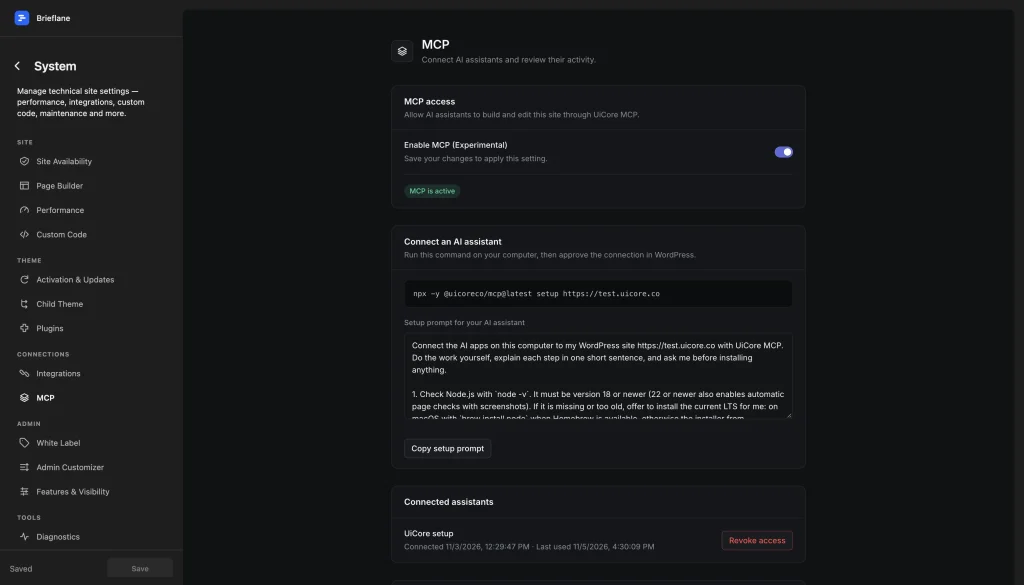
1. Connect your AI assistant
Everything starts in the new UiCore Site Editor.
Under Site Editor → System → MCP, you can enable the connection and get the information needed to connect your compatible AI assistant to your WordPress site.
Once connected, your assistant can start working with the UiCore PRO tools available through MCP.
2. Describe what you want to build
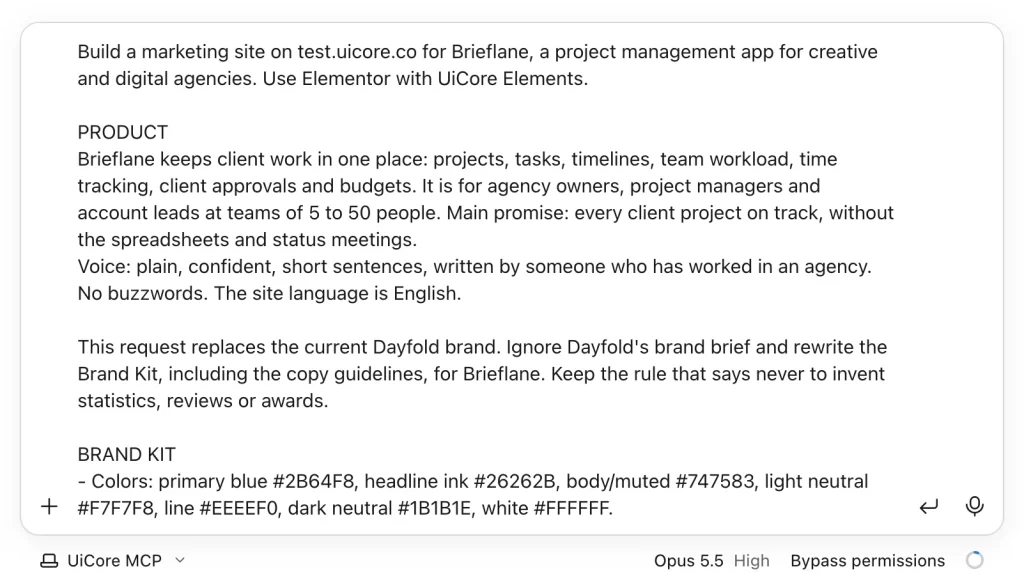
For this demo, we used Claude and gave it a prompt describing the website we wanted.
The prompt included information about the business, the desired design, and the content and structure of the website.
3. Configure the Brand Kit
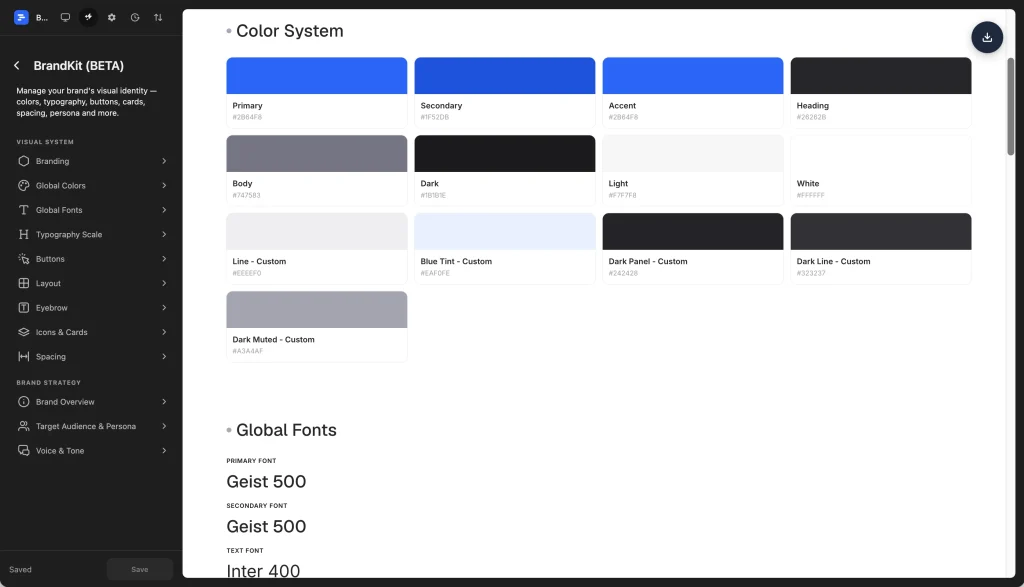
Before building the pages, Claude set up the website’s Brand Kit.
It configured the global color palette, typography, fonts, and design settings to establish a consistent look across the site.
These settings are saved in UiCore PRO, so you can review and adjust them later using the Site Editor.
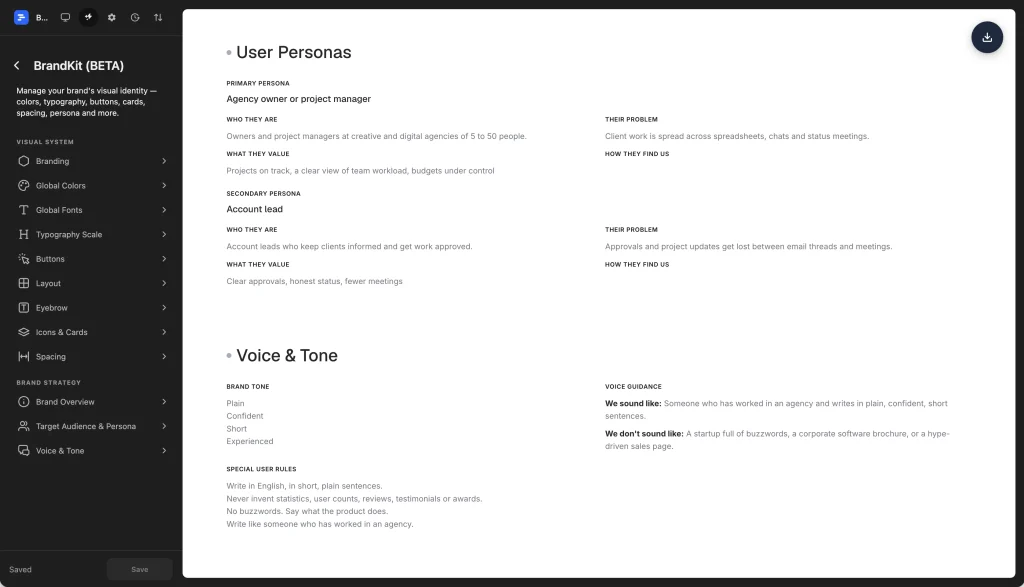
It also configured the target audience and brand voice, providing context for the website’s content and messaging.
4. Build the website
With the Brand Kit in place, Claude started building the website.
Using UiCore PRO’s building tools, it created the page structure, added content, and applied the design settings established earlier.
Here’s the resulting website.
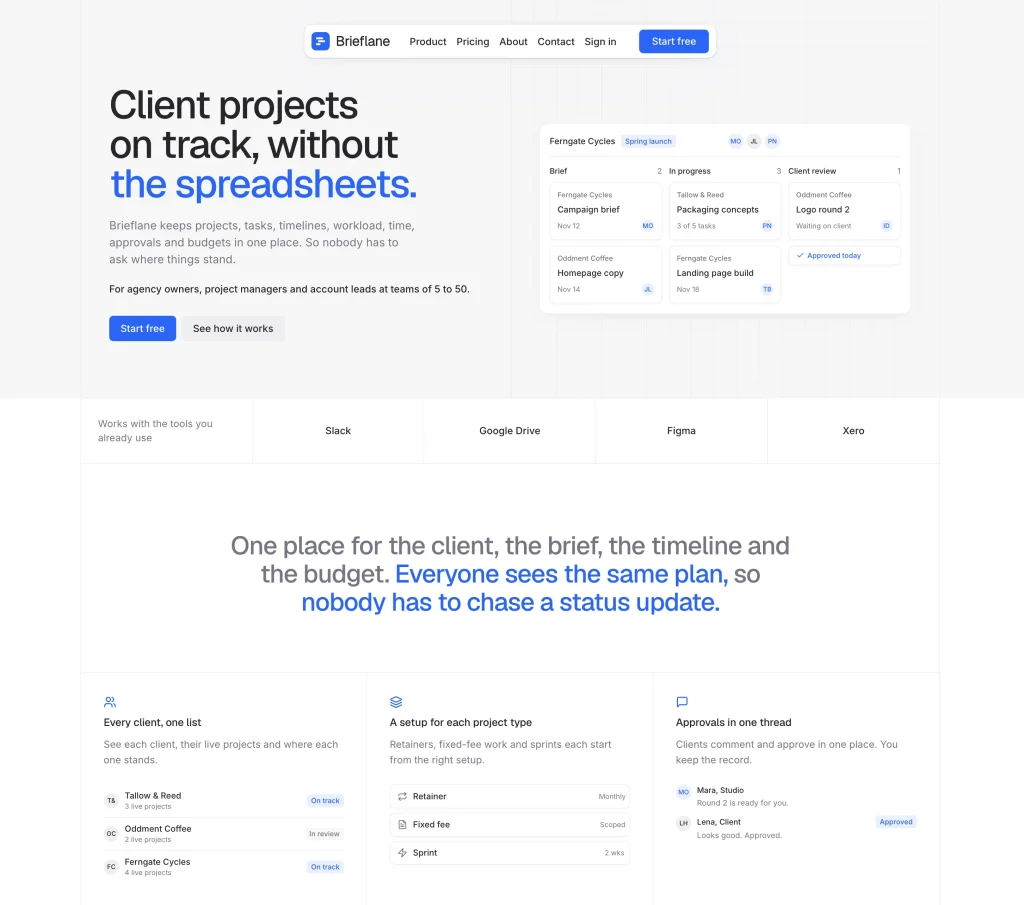
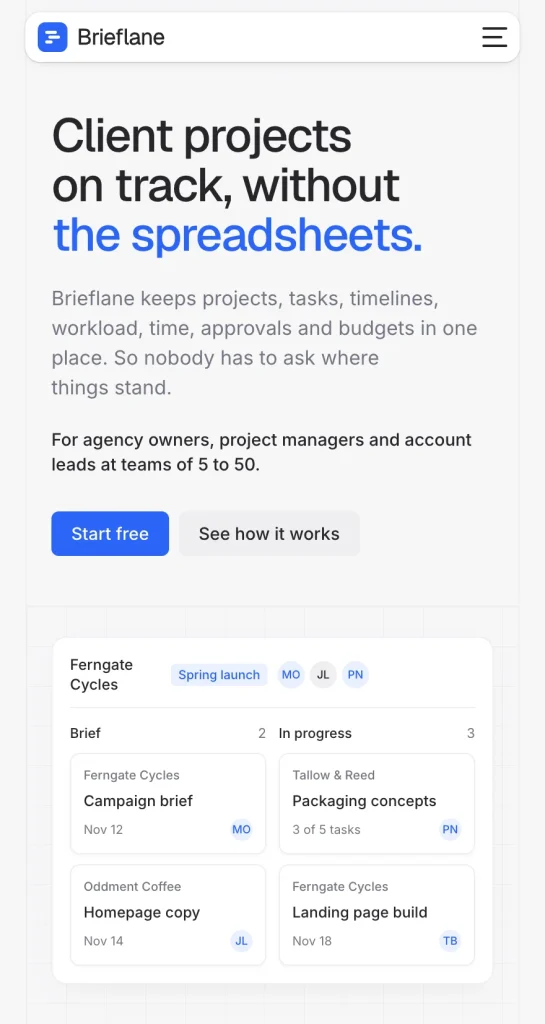
The assistant also created responsive layouts for smaller screens, adjusting the content and layout for different devices.
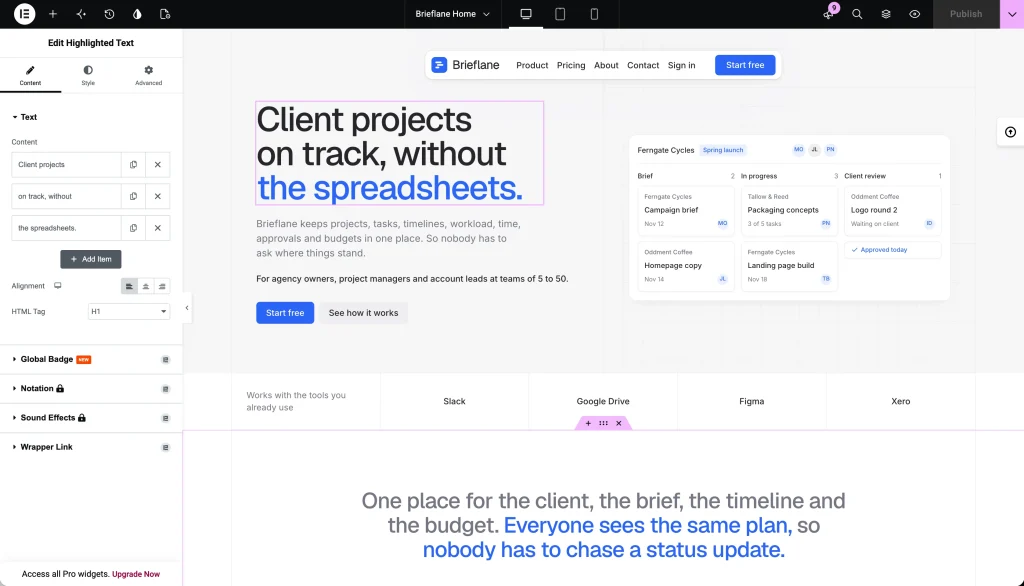
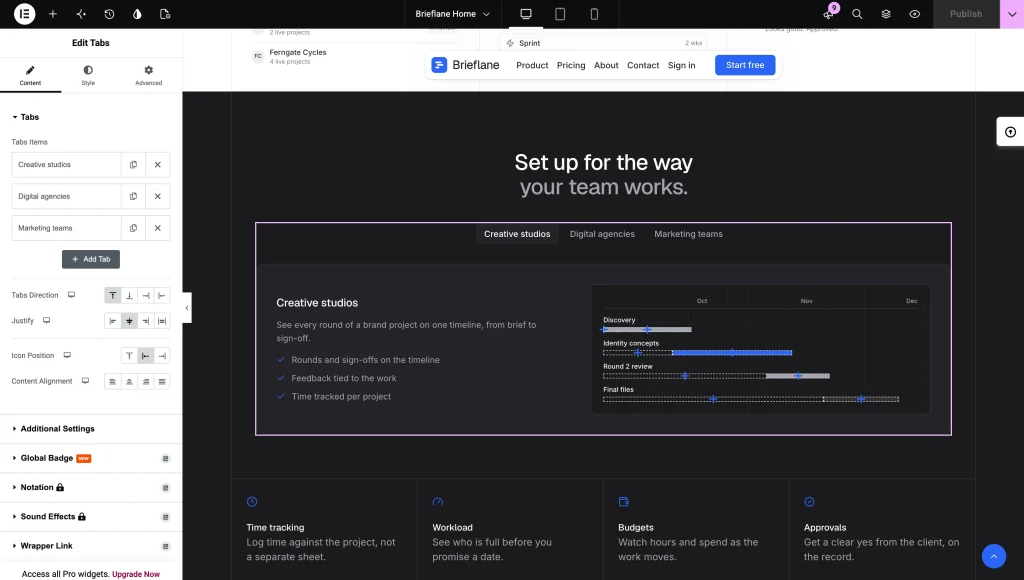
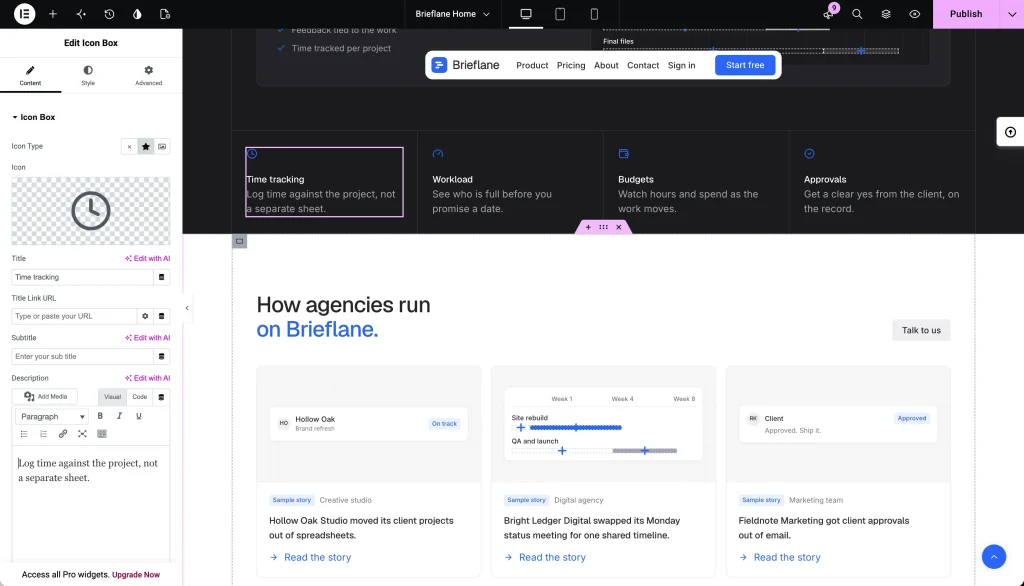
5. Edit with Elementor
The generated pages use actual Elementor widgets, including UiCore Elements.
In our demo, Claude used widgets such as Highlighted Text, Tabs, and Icon Box.
The resulting pages remain fully editable in Elementor, so you can continue working manually or ask AI to make further changes.
Here’s another example from my colleague Andrei, who used the new MCP integration to build a website with an AI assistant:
Coming soon in UiCore PRO v3
The MCP integration is part of the upcoming UiCore PRO v3 release.
We’re also working on improvements to the Site Editor and other features that we’ll share more about soon.
Try it now
The new MCP integration is already available in UiCore PRO 2.5.0.
Update to the latest version, open Site Editor → System → MCP, and enable the integration to connect your AI assistant.
This is an early version, and we’ll continue improving it with future updates.

Gabriel Sirbu
Co-founder and lead designer at UiCore. Focused on building clean, flexible designs that help websites stand out without getting in the way.